- Need help?
- Credential FAQ
- How to add your credential to LinkedIn
- AWS Community Day badge not showing on LinkedIn?
1. Need help?
For questions about the credentials platform — including organizer access, credential issues, or technical problems — please reach out on Slack:
- Join the AWS Community Users Slack workspace:
join.slack.com/t/awsusers - Ping John Varghese in the workspace
We will get back to you as soon as possible.
2. Credential FAQ
I didn't receive my credential email
- Check your spam or promotions folder and search your inbox for "credential" or the event name.
- Not receiving an email does not necessarily mean a credential was not issued; the organizer may not have sent notifications yet, or the email may have been filtered.
- If you still cannot find it, contact your event organizer with your full name and the email address you registered with so they can look up your credential.
My credential link doesn't work
- Make sure you copied the full URL — some email clients truncate long links.
- If the link returns "Credential Not Found," the credential may have been updated or revoked by the organizer. Contact them with your credential ID or name for assistance.
My name or details are wrong
- Credential details can only be corrected by the event organizer. Reach out to them with the correct information and your credential ID so they can issue an update.
What does the public credential page confirm?
- The page confirms that it matches the credential record stored by the platform and displays the record's current status.
- That record confirmation does not by itself verify the issuer's identity, assess the quality of the achievement, or mean that the platform endorses either one.
3. How to add your credential to LinkedIn
Before adding your credential, make sure you follow the AWS Community Day page on LinkedIn. This is required for the organization to appear in LinkedIn's search results.
- Visit linkedin.com/company/aws-community-day and click Follow
- Click the Add to LinkedIn button on your credential page
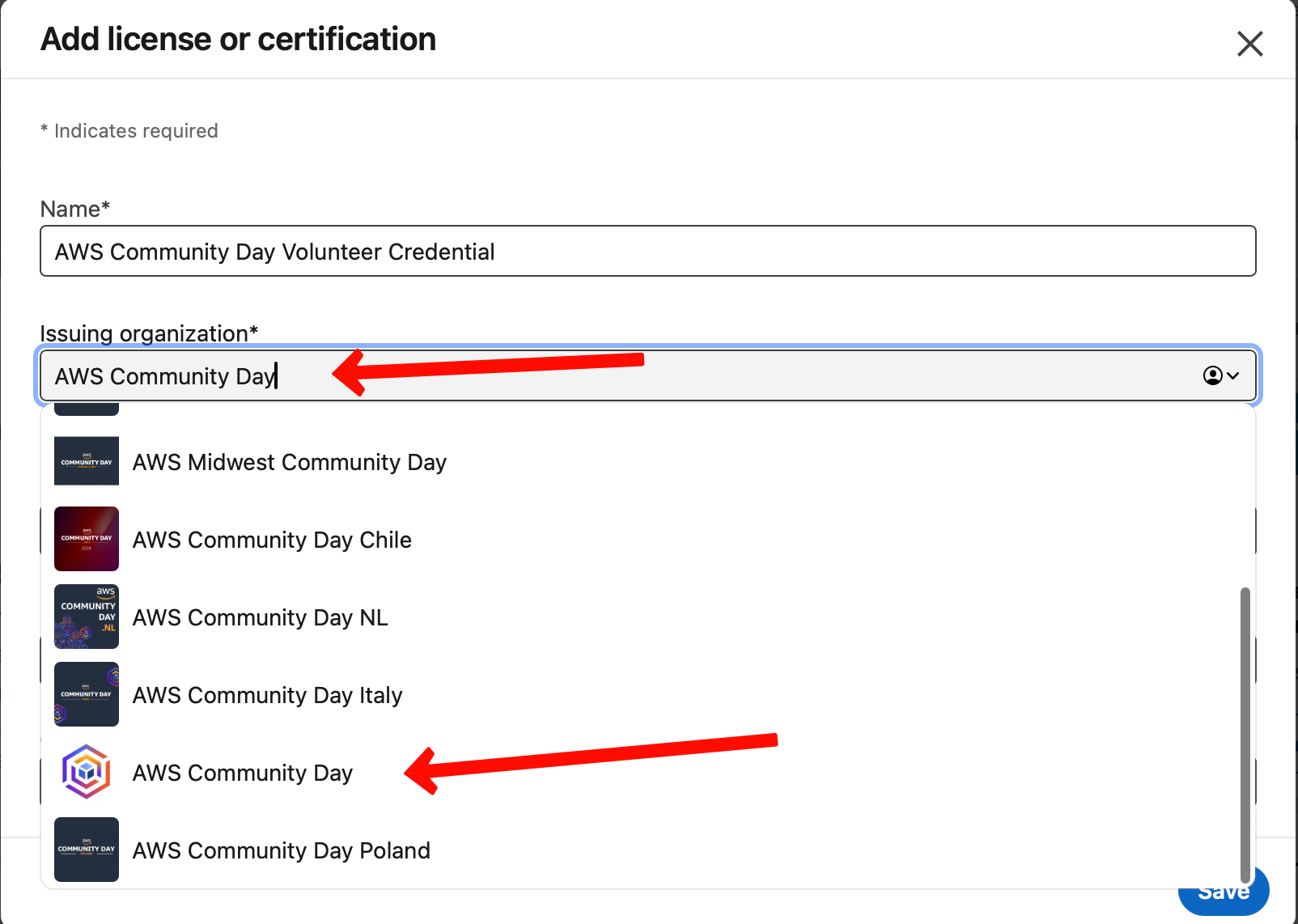
- In the Issuing organization field, type AWS Community Day and select it from the dropdown
- Fill in the credential name, ID, and issue date from your credential page
- Save — the AWS Community Day badge should appear next to your certification
4. AWS Community Day badge not showing on LinkedIn?

If the AWS Community Day badge or logo is not appearing next to your certification on LinkedIn, it is most likely because you have not followed the AWS Community Day page yet. LinkedIn only shows organization badges for pages you follow.
To fix this:
- Follow the AWS Community Day page: linkedin.com/company/aws-community-day
- Go to your LinkedIn profile and find the certification entry
- Edit the certification
- In the Issuing organization field, clear it and re-type AWS Community Day, then select it from the dropdown
- Do not leave it as plain text — you must select the organization from the dropdown for the badge to appear
- Do not select a city-specific AWS Community Day page if you want the global badge